19.01.2026 – Pavel Klavík, Kamila Klavíková
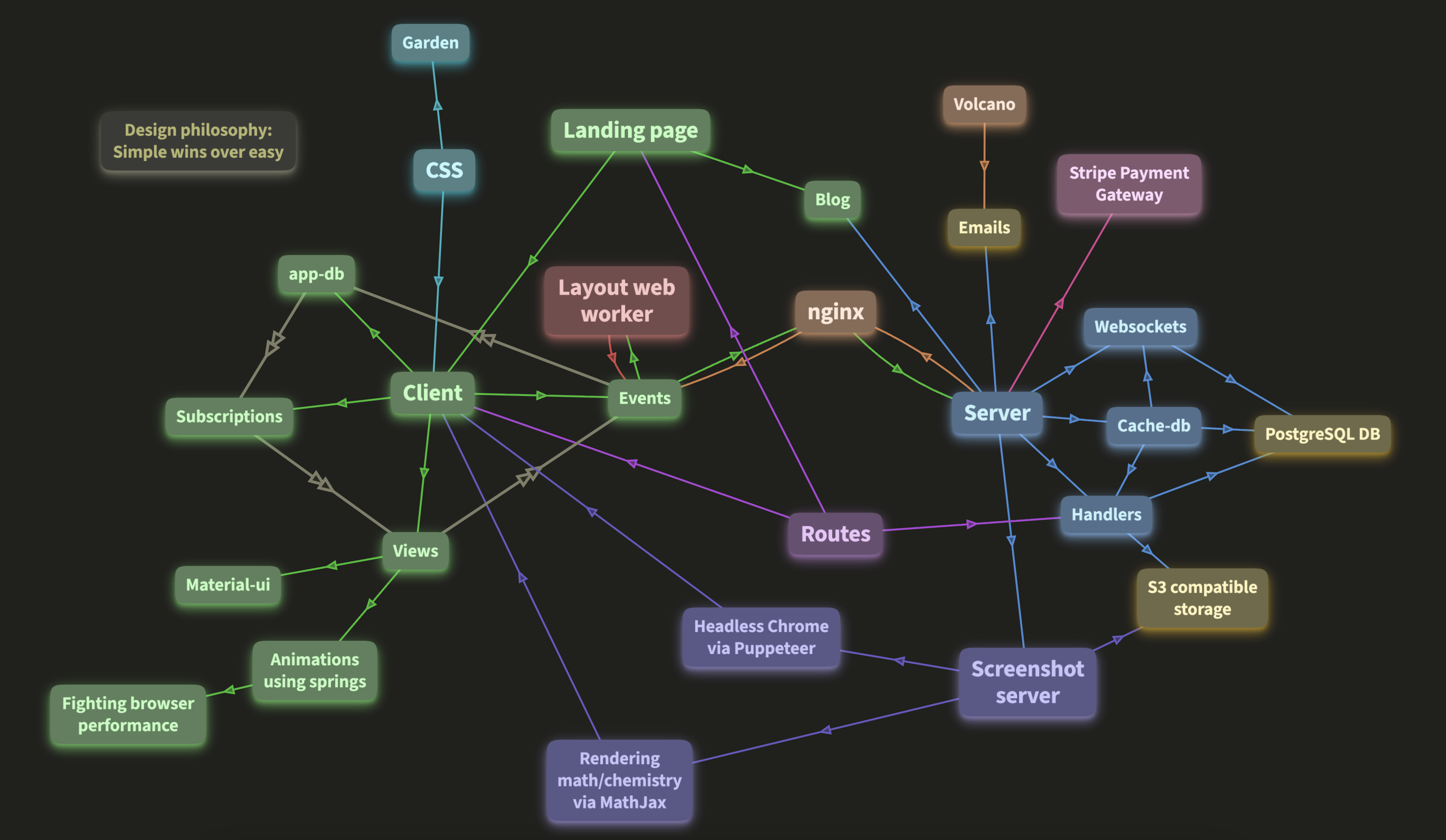
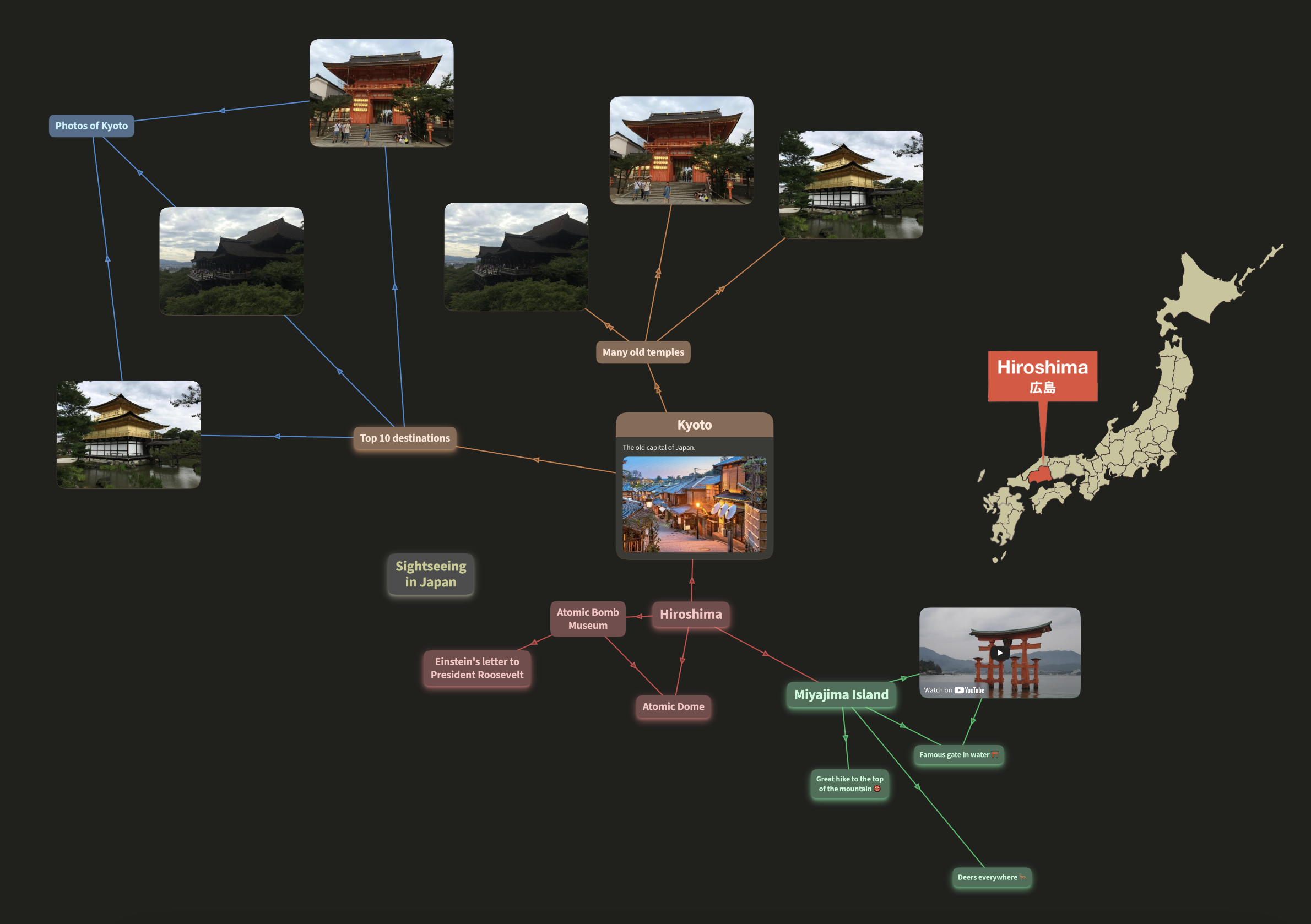
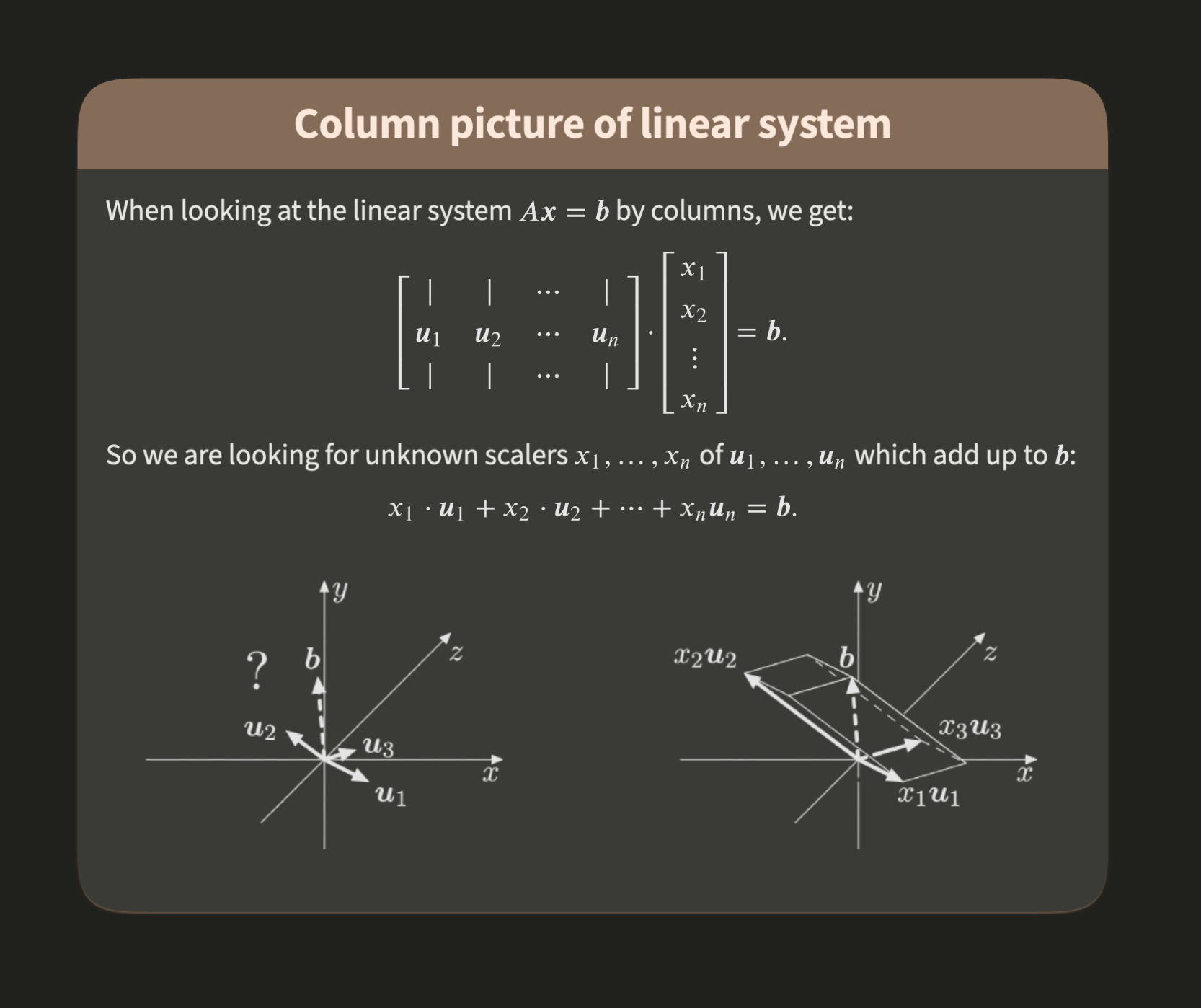
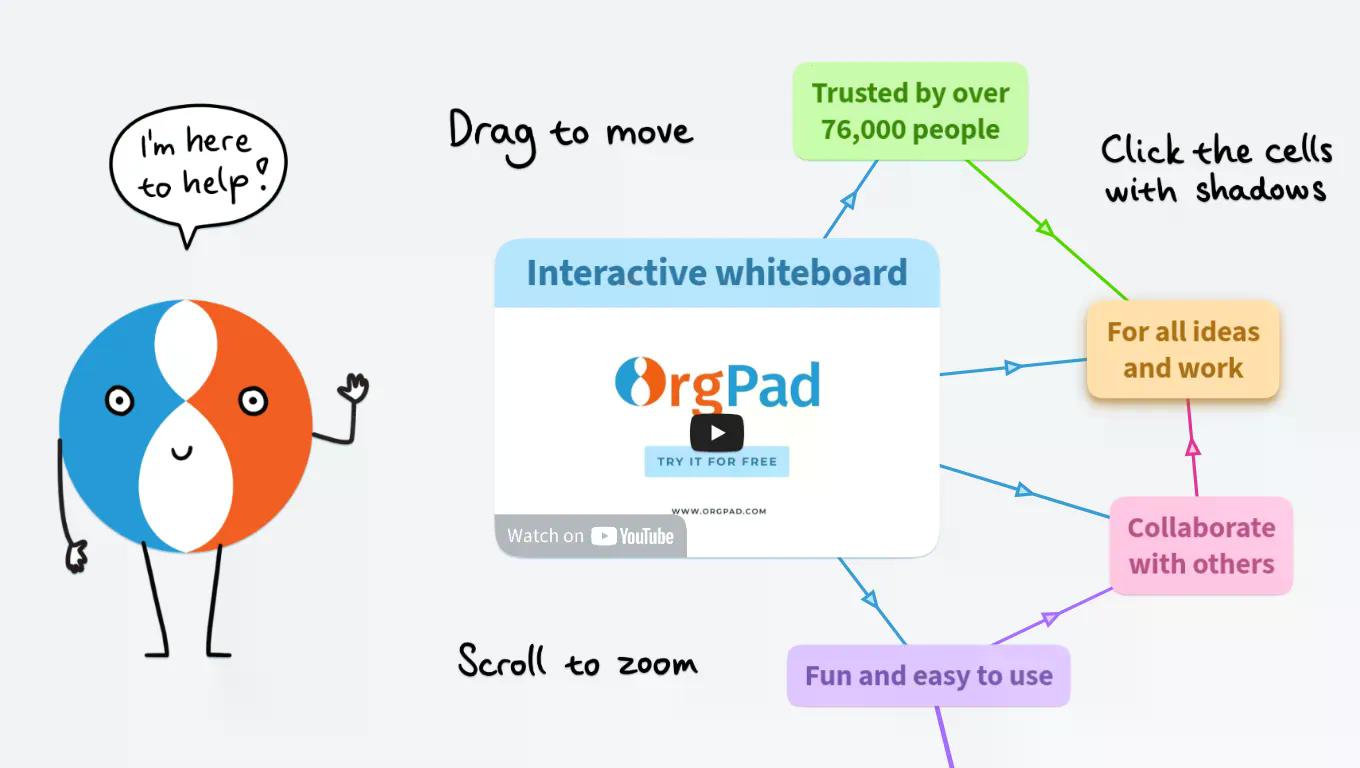
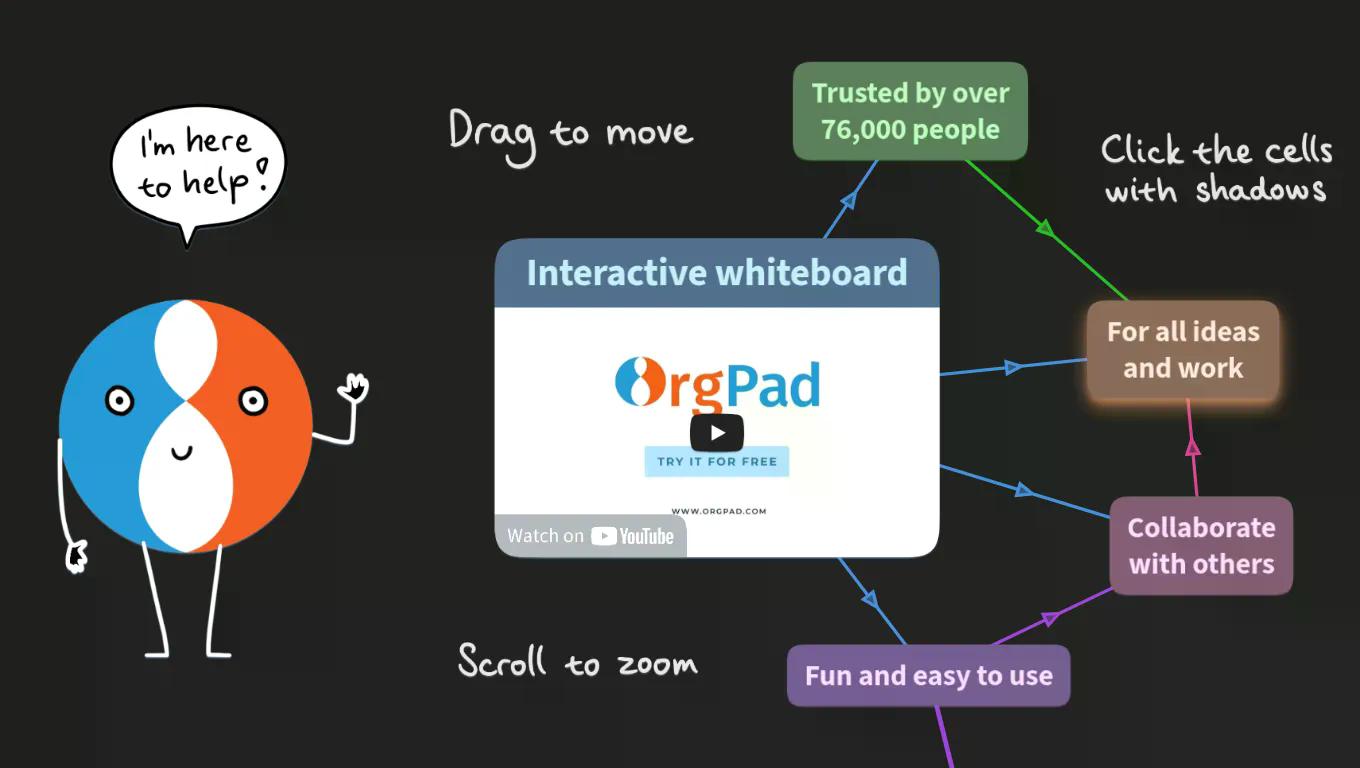
We’ve added Dark Mode to OrgPad. The canvas is dark, cells use muted colors, and text stays easy to read. Thanks to a new color palette, working in OrgPad is now more comfortable in the evening or in low light. If your system already uses Dark Mode, OrgPad will switch automatically. You can also change the mode anytime in settings.
#appearance, #improvement, #update, #OrgPad, #dark mode
OrgPad didn’t have Dark Mode for a long time. In many apps, Dark Mode looks bad and feels cluttered. For us, visual clarity has always been critical. We want information to be easy to understand and want you to focus on content, not on tweaking how the document looks. That’s why OrgPad uses a rich color palette where all colors work well together and none stand out too much.
Dark Mode became popular mainly because it’s easier on the eyes when you work at night in a dark room. In OrgPad, this was less of an issue. Most of the screen isn’t bright white like in Word. OrgPad documents use a gray background and soft pastel colors for cells, so they already looked good on large monitors, even in the dark.
Creating a truly good-looking Dark Mode would have taken a huge amount of work, and at the time we didn’t feel it was worth the effort. Instead, we recommended using the Dark Reader browser extension, which can automatically convert websites to Dark Mode.
That changed in September 2025, when we improved how cells are rendered in OrgPad. We now render each cell, even with complex content, as an image using a 2D canvas, as described in an earlier article. This made rendering much faster and finally fixed performance issues on iOS. But it also broke Dark Reader. By default, Dark Reader doesn’t change image colors so it doesn’t invert photos on websites. With the new rendering, all cells are images, so they stayed in light mode. You could force Dark Reader to invert images, but then it would also invert photos uploaded to OrgPad, which isn’t acceptable.
So we decided to build our own Dark Mode. It works correctly and looks much better than any automatic solution. Dark Mode is now available, and you can see the result for yourself.
Creating Dark Mode was hard work. Our designer Kamila spent dozens of hours building a new color palette just for Dark Mode. OrgPad has 15 preset colors for cells and links. All of them must work well together, and none should dominate. On top of that, each color needed several shades. We found that Dark Mode needs different shades for shadows and for code highlighting. Along with the rest of the interface, we ended up mixing and fine-tuning around 100 different colors.
We shared early designs on the OrgPad Discord server. Thanks to everyone who shared feedback, especially people who regularly use Dark Mode in other apps. If you’re interested in the technical details, we’re preparing a separate article that explains how Dark Mode works in OrgPad and what challenges we had to solve.
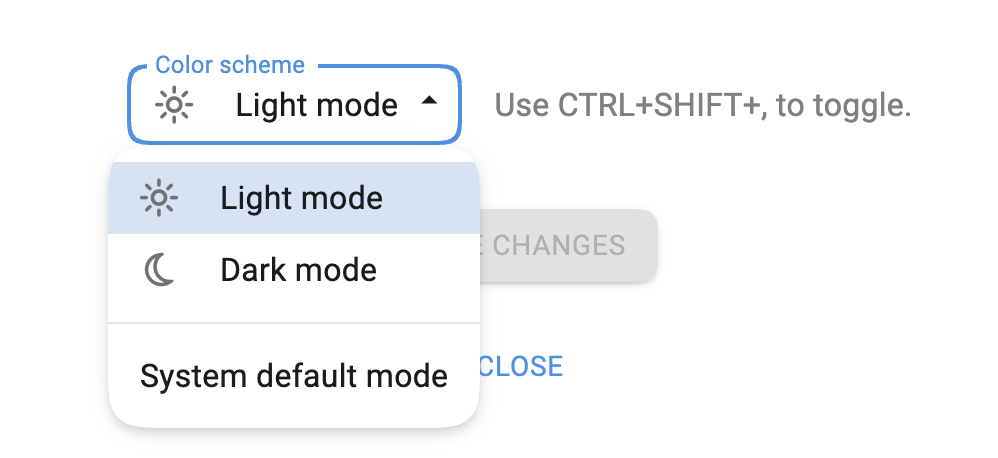
By default, OrgPad follows your system’s color scheme. That means OrgPad may already be in Dark Mode without you changing anything. You can choose the color scheme in settings, which you’ll find in the menu after clicking your profile picture in the top-right corner.
If you select “System default,” OrgPad will always follow your system setting. This is useful if you use Light Mode during the day and switch to Dark Mode at night.
You can also toggle the mode using a keyboard shortcut:
If you insert a transparent image into a cell without a title, it’s displayed directly on the canvas. This is a great way to visually enhance a document. In Dark Mode, however, such images can become hard to see. To solve this, we added support for alternative images specifically for Dark Mode. For example, the OrgPad home page uses different images in Light and Dark Mode.
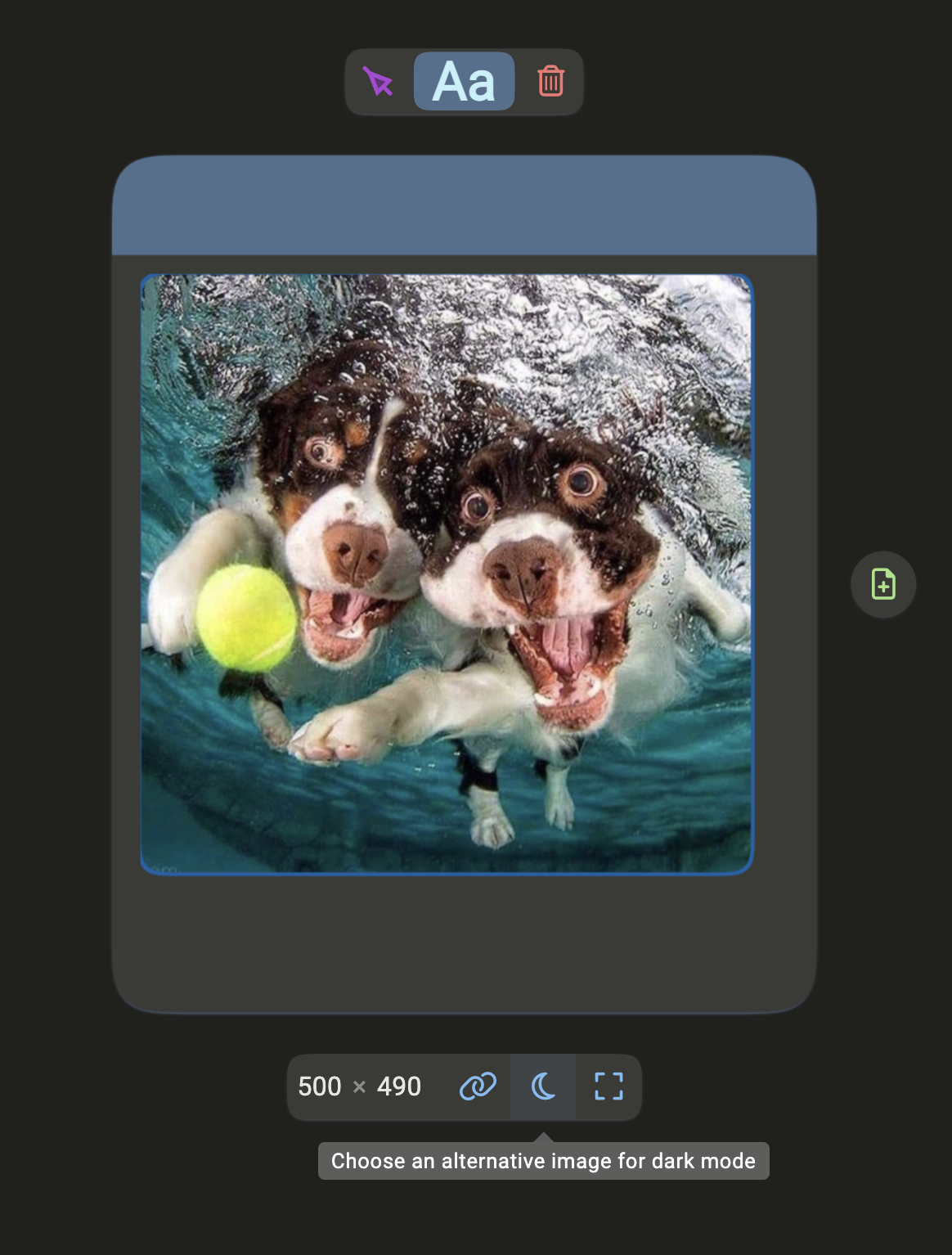
You can set an alternative image directly in the editor. Click the image and you’ll see a new button with a moon icon in the panel. This opens a dialog where you can choose a Dark Mode version.
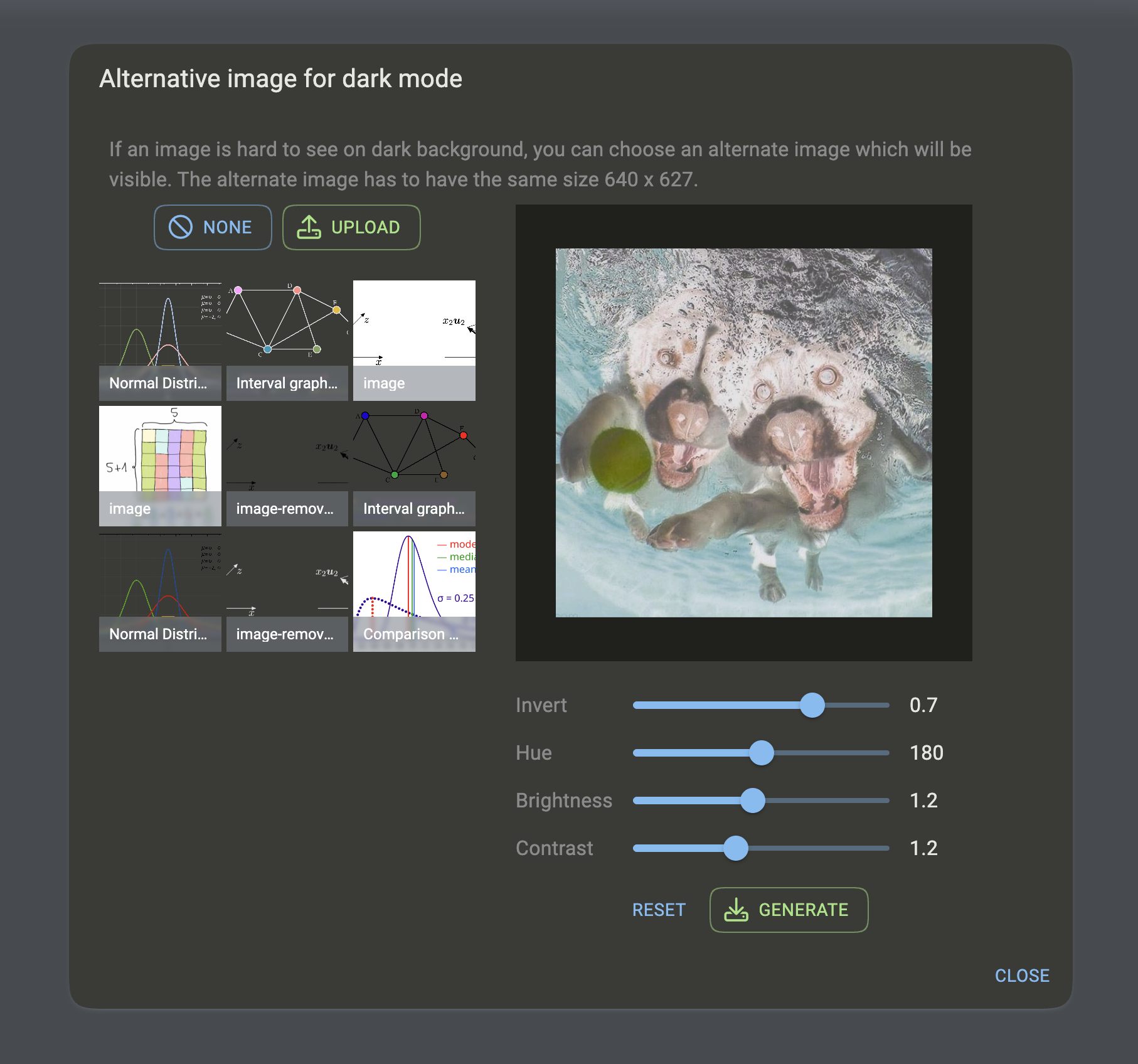
On the left, you can select an existing image or upload a new one. The alternative image must have the same dimensions as the original.
On the right, you can generate an alternative image automatically. You’ll see a live preview along with controls for color inversion, hue, brightness, and contrast. If you like the result, click the green Create button. After a short moment, the image is added to your image list and set as the Dark Mode alternative.
Automatic generation works great for simple images, such as white headings on landing pages. For more complex illustrations, like the OrgPad mascot on the left, we created the Dark Mode version manually in a graphic editor.
As part of this update, we also improved our screenshot server. This is a small helper server running Google Chrome. We use it to generate OrgPage previews, export PDFs, create invoices, and render images with math and chemistry formulas.
The entire process is now much faster. The server handles up to three jobs at the same time. Any additional requests are queued, which prevents overload when many tasks arrive at once.
We now generate OrgPage previews in both Light and Dark Mode. We also generate previews for all locations, as promised in our article about locations. When you insert a location into another document, the correct preview is always shown.
Over the past few days, we generated Dark Mode previews for all 170,000 existing documents in OrgPad. This gave us a great stress test under heavy load. We also save preview images in WebP instead of PNG, making them about 6× smaller.
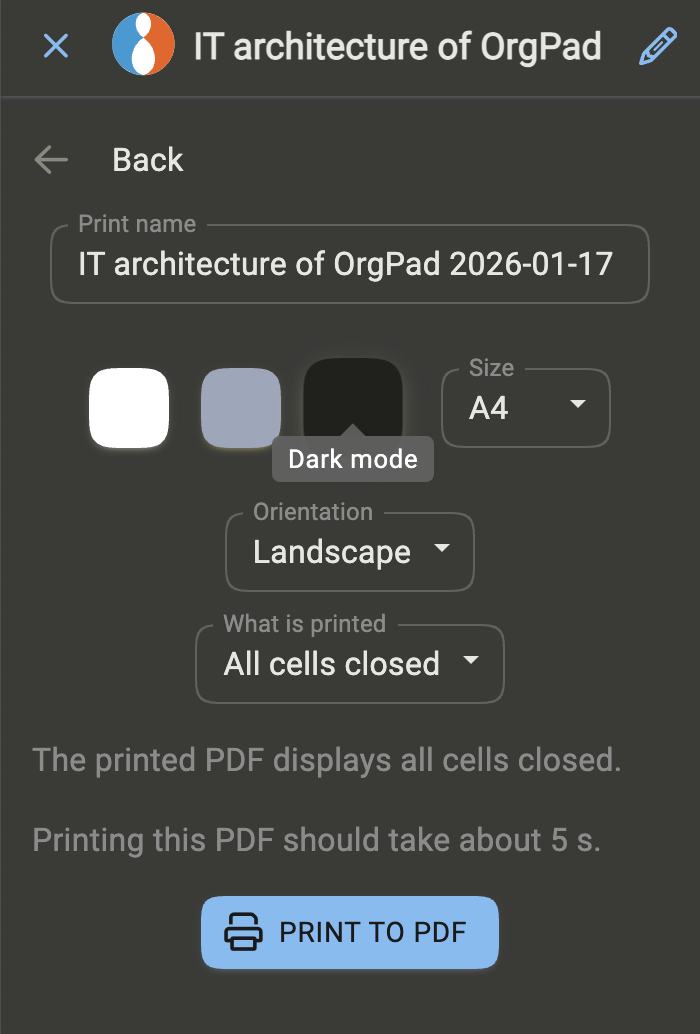
When exporting to PDF, you can now choose Dark Mode as well. It’s not ideal for printing on paper, but it can be useful for on-screen viewing. For example, this is how  IT architecture looks when printed in Dark Mode.
PDF export is now about 30% faster. We also added a progress indicator, which is especially helpful when exporting presentations with many steps.